It is necessary to check your software version, to know whether you are outdated or not.
Just dial *#0000# and you may get the following result
Nokia 3110c ==> Phones name
v 07.21 ==> Software version/firmware
05-11-08
RM 237
(c) Nokia
Latest version for Nokia 3110c is v 07.21 and oldest is v 06.01
Friday, September 24, 2010

Friday, September 10, 2010
Updates : Nokia Ovi Suite v2.2.1.2.3
A newer version of Nokia ovi suite is available.
 Here are the details :
Software : Nokia Ovi Suite
Updated Version : 2.2.1.23
Previous version : 2.2.0.245
What's New :
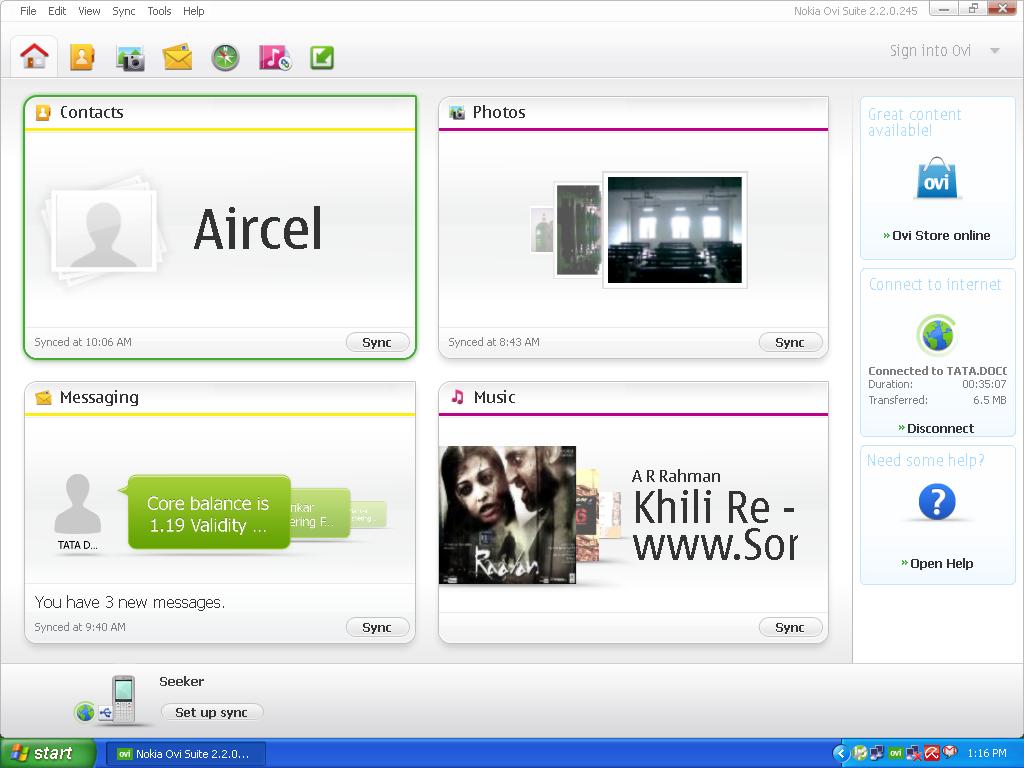
Software : Nokia Ovi Suite
Updated Version : 2.2.1.23
Previous version : 2.2.0.245
What's New :
- Important improvement for Nokia N8
- Increased Stability
- Much more reliable Map download
- Video playback has been improved
- Now supports synchronizing contacts with Mozilla Thunderbird 3.1
- You can either download by visiting this url (http://nds1.nokia.com/files/support/global/phones/software/Nokia_Ovi_Suite_webinstaller_ALL.exe). File download size is 98.14 Mb
- If you already have a previous version installed use Tools > Software updates. File download Size is 84Mb
Saturday, September 4, 2010
Skins for KD player in Nokia 3110c
As mentioned, the most important advantage of the KD player is that it can change its skin. You may think that this will be basic colour change. No, its more than that and your can turn it into a new player.
There are two steps for getting the skin
Getting skin files from official site :
Out of all the skins from the official sites , i have chosen some favorites which are most compatible and good looking.
Download and extract this .zip file and copy the whole to your memory card
There are two steps for getting the skin
Getting skin files from official site :
- First GOTO http://www.easter-eggs.net.ru/KDPlayer/Skins/index.php
- Download the skins you liked(For screen size 128 x 160)
- Extract zip file . Now you will get two files with extensions "kdi" and "kds"
- Copy it into your phone memory.
Out of all the skins from the official sites , i have chosen some favorites which are most compatible and good looking.
Download and extract this .zip file and copy the whole to your memory card
Changing Skin
- Go to main menu of the KD player
- Click menu
- Click 'More(incl. skins)'
- Select Change Skin
- Browse to the location of your skin file and select it.
- Over and out
Instructions For Using KD Player
You find it very useful, if you are using KD player on your mobile for the first time. Here are the step by step instructions for configuring your KD player to handle your music files.
Adding files to library
Adding files to library
- Open KD Player
- Click on 'Menu'
- Click on 'preferences'
- Select 'Folders for scanning'
- Click 'Menu'
- Select 'Add folder'
- Browse to your music folder(Highlight the folder- Do not enter)
- Click 'Menu' and Select 'Save to this folder'
- Now Folders for scanning is complete
- Go back to main menu and select 'Menu > Update library'
- Your Music library will start updating
- Enjoy Music when finished.
- up/(2) for increasing volume
- down/(8) for decreasing volume
- center key(5) for play/pause
- left/right(4/6) for changing track
- 7 for shuffling playlist
- 9 for looping option
- 1 for opening playlist
- 3 for visualization
- 0 for main menu
Subscribe to:
Posts (Atom)
